Step 1. Login to your cPanel control panel by visiting yourdomain.com/cpanel and entering your username and password.
Step 2. Look for the icon labelled Select PHP Version under the Software category. You can also use the search box in the top right corner.

Step 3. You should now see your current version of PHP and a drop-down menu with a list of supported PHP versions. The default version is currently 5.4 however in the drop-down you’ll have the option of choosing from PHP 5.2, 5.3, 5.4, 5.6, 7.0, 7.1 and 7.2.
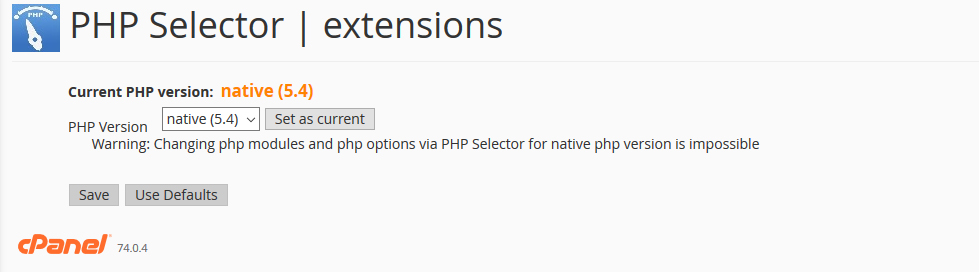
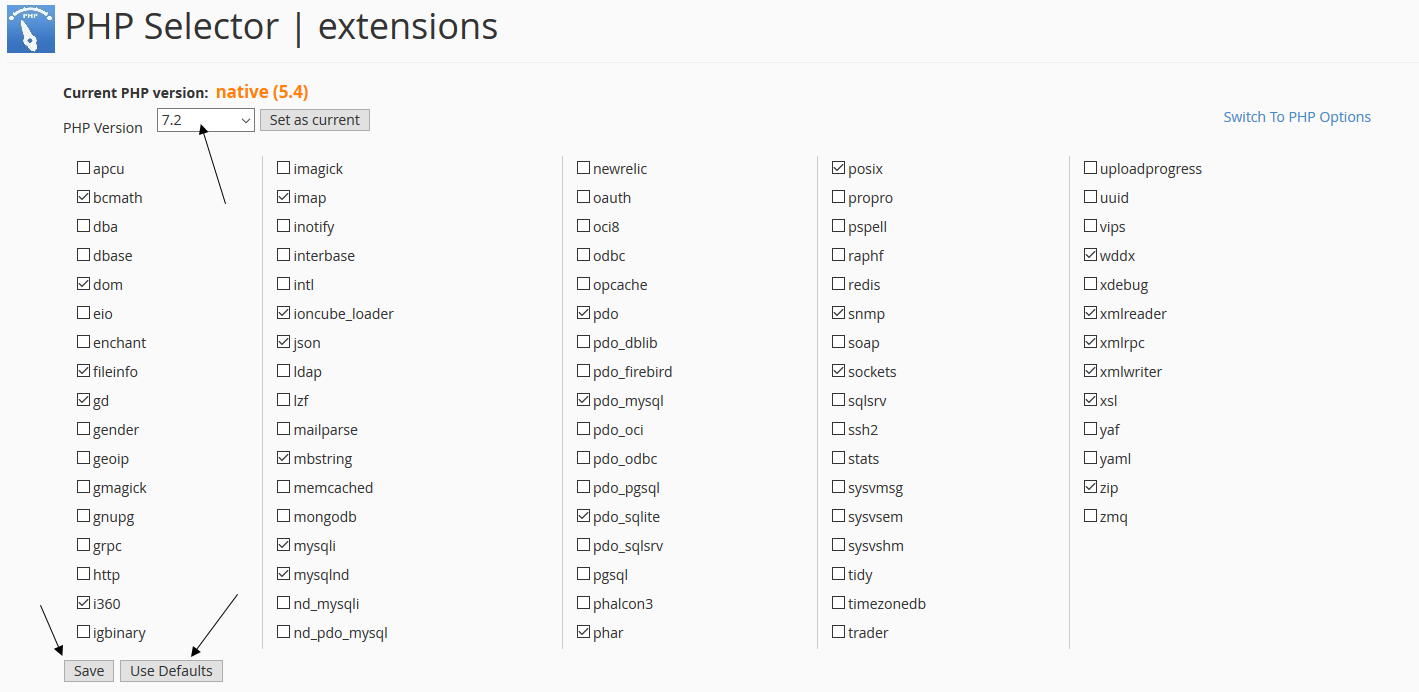
Step 4. Select PHP 7.2 if you wish to use the latest version of PHP and then hit the Use Defaults button in the bottom left. Then hit the Save button.
Step 5. Now it’s time to test your website to see if it’s compatible with PHP 7.2. Simply visit your website in a new tab in your browser. If your website loads without any error messages present then your website is compatible and no further action is required. If you see an error message or if you’re seeing a blank white page then that means your website is not compatible with PHP 7.2. In this case you would go back to the cPanel and select your previous PHP version and hit save.
What to do if your website is not compatible with PHP 7
If you switched to PHP 7 and see an error on your website it will likely tell you which plugin or theme is the culprit. If it’s a plugin, you can try to disable it to see if that solves the issue. If it’s related to your theme then you’ll need to contact the theme developer to see if there is a new theme update that is compatible with PHP 7.
If you see a blank white page then you’ll need to check the error_log file located in the public_html folder of your website. The error_log will show you PHP errors and what is causing them. You’ll need to resolve the errors in order to use PHP 7 with your website. Remember, you can always go back to your previous version of PHP using the Select PHP Version icon inside cPanel.
Since PHP 5 will no longer receive security updates after December of 2018, it’s best to get started now and update your scripts, themes and plugins if they aren’t compatible.
Conclusion
With so many websites using PHP as their scripting language, it’s become a target for hackers who look for exploits in older PHP versions. Staying current with PHP versions is a critical component of website maintenance and security. At HOSTAFRICA, we want to ensure our customers are running the latest PHP version and the Select PHP Version tool inside cPanel does just that. You can control the version of PHP your website uses along with enabling or disabling PHP modules you may need.
If you have any questions about changing the PHP version your account uses you can always reach out to our support team via Live Chat or by opening a support ticket.