This feature of cPanel is very useful for your website. We can use the backup feature for transferring our website to the new host. If we are making a change in the website files or database, we can create a backup of the website. So that, if in future anything wrong happens to the website while editing, we can always restore to as it was before. If any problem occurs with the hosting provider, you will always have a copy of the website.
cPanel Backup creates a zipped copy of your entire website or a part of your website. There are two types of Backup in your cPanel Backups.
Full Backup
Full Backup creates a zipped copy of your entire website and cPanel account. It includes all the files you own or you have access to. It also includes all the databases, email accounts, email lists, subdomain, etc.
Full Backups cannot be restored through cPanel interface. It is only used when you are transferring your current host to the new host. You need to upload this zipped back up into your home directory and ask your hosting provider to restore it.
To download your full website backup, please follow these steps −
Step 1 − Open cPanel Backup by clicking Backup from the Files section in cPanel Home.
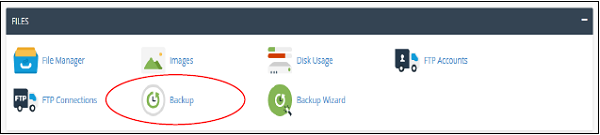
At the top, you will find Full Backup as shown below −
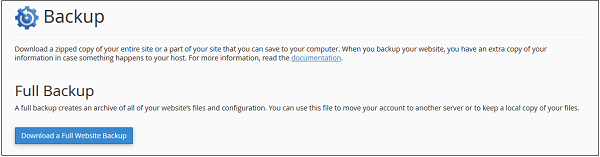
Step 2 − Click on the Big Blue button on which “Download a Full Website Backup” is written and you will be taken to this screen.
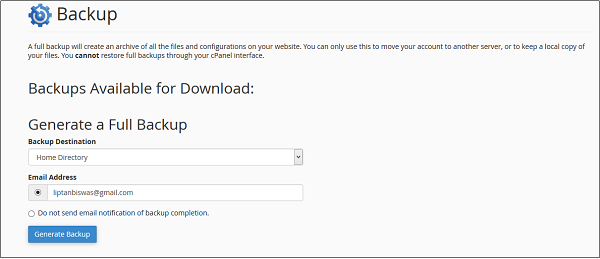
Step 3 − Select Backup destination, leave it as home directory. This will create a backup in your home directory, from where you can download it later. Enter the email address, where you want to receive a notification when the full backup of your website is ready to be downloaded. As full website backup takes time to generate.
Step 4 − Click Generate Backup and you will see a success message of Backup in Progress.
To download the Full Website Backup, you can always come back to this page after you receive your email notification and you will see a screen similar to the one shown below.
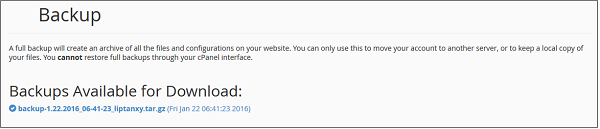
Download your backup by clicking over the backup link.
Partial Backups
Partial backup is created and can be downloaded instantly. Through Partial Backup, you can download your Home Directory, Databases, Email Forwarders, and Email Filters separately. You can restore the downloaded backups any time by uploading them to cPanel using the same interface.
To use this feature, open your Backup section using the same method used above in Step 1, scroll down and you will see a similar interface shown here, the interface will vary according to your domain and data.
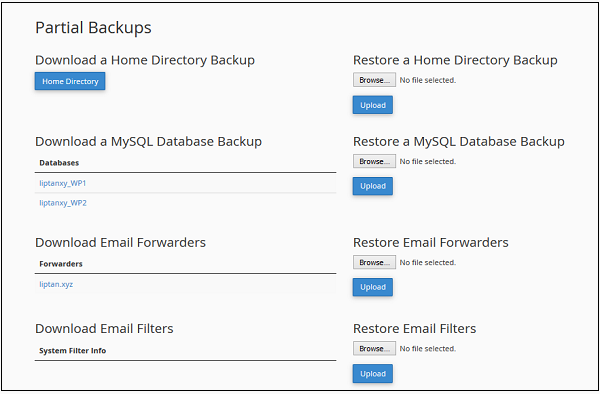
You can click the Home Directory button to download your home directory backup. To restore your home directory, you can upload the same file in the right-hand side interface on which Restore a Home Directory Backup is written.
You can do the same with Databases, Email Forwarders, and Email Filters.