How to set the PHP Version per Domain, using cPanel

Do you have multiple domains, and you wish to set the PHP version per domain? For example, you have the domains Example1 and Example2, and you want to set PHP7 on Example2 domain and PHP 5.6 on Example1. You will need to do this from the cPanel.


1. Log into your cPanel account.


2. In the Software section, click on the MultiPHP Manager Icon.
cpanel-multiphp-icon.gif

3. Scroll down to the end of the page, select your domain from the left side, and see the PHP Version option. With a drop-down list on the right side. Select the appropriate PHP version from the drop-down menu and then click on Apply.
cpanel-multiphp-select-domain-full.gif

4. Now you want to set PHP 5.6 on Example2, scroll down and select the example2 domain. Then set the PHP version to 5.6.
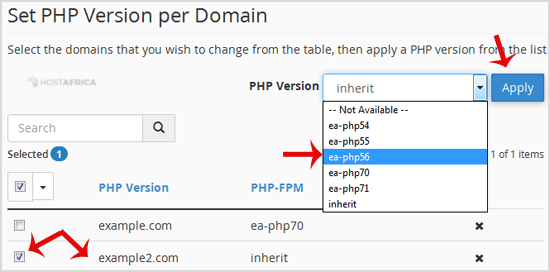
cpanel-multiphp-select-second-domain.gif


Congratulations, both of your domains using different PHP versions now.

  • 0 Users Found This Useful
  • php version, cpanel, Domain
Was this answer helpful?

Related Articles

How to check the Disk Usage of a Directory and Bandwidth Usage

If you are receiving a disk space usage warning and don't know which folder is using too much...

How to create a new folder or files in the cPanel File Manager

1. Log into your cPanel account. 2. In the Files section, click on the File Manager Icon. 3....

How to upload files via the cPanel File Manager

If you don't want to use a 3rd party FTP Software, you can use the cPanel's inbuilt File...

How to access cPanel Web Disk

You can use cPanel login details to access your Web Disk, which supports various operating...

How to add a CNAME Record in cPanel using the DNS Zone Editor

CNAME records are referred to as alias records since they map an alias to its canonical name. You...

Powered by WHMCompleteSolution